Groups and Ledgers
Group is a collection of Ledgers of the same nature. In a business, expenditures like telephone
expenses, electricity charges, conveyance etc., are commonly incurred. Ledgers based on these
expenditures are created to be used while accounting vouchers are entered. To know the total of
such expenses for any period (a week or a month), similar natured expense ledgers are grouped.
Ledger account heads are the actual account heads with which we identify the transactions. All
voucher entries have to be passed using ledgers. To Understand the concept of Groups and
Ledgers, let us create Ledgers and Groups in Indus Enterprises.
Sundry Debtor, etc. which are referred to as GROUP names.
Ledgers are created in the following manner:
Go to the Gateway of Tally > Accounts Info. > Ledgers > Create.
The Ledger Creation screen appears as shown below:

Practice Exercise
Two of the nine ledger accounts will be created by us. As a practice exercise you will be creating the remaining seven ledgers.

Notice that Tally.ERP 9 automatically capitalises the first letter for you.
2. Land & Building under Fixed Assets with an opening balance of Rs.60000.

Tally.ERP 9 displays the total debit and credit opening balances while the ledgers are being created in the Ledger Creation screen. This is to avoid differences in the opening balance. So far, we have used the default groups provided in Tally.ERP 9, but Tally.ERP 9 does allow us to create our own groups. To know how to do so, let us explore the options available under the creation of Groups using Tally.ERP 9's pre-defined groups.
Groups can be created in the following manner:
Go to the Gateway of Tally > Accounts Info. > Groups.
The Groups menu appears as shown below:
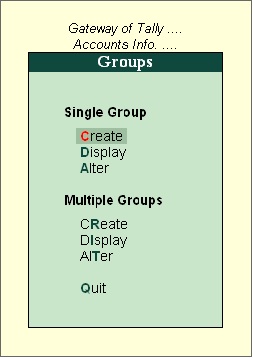

You can create one group at a time by pressing Enter on Create under Single Group menu. In case, you want to create multiple groups simultaneously, you can create them by pressing Enter on Create under Multiple Groups.
Create the following Sundry Debtors Ledger accounts :
Groups - North Delhi Debtors and Bhopal Debtors under North India Debtors.
Mysore Debtors and Secundrabad Debtors under South India Debtors.
Renison & Co and Milton & Co grouped under North Delhi Debtors.
Solution:
The solution is to first create two sub-groups North India Debtors and South India Debtors under Sundry Debtors.
Go to the Gateway of Tally > Accounts Info. > Groups > Create.
Enter Name as North India Debtors
Against the field Under select Sundry Debtors from the List of Groups
The Group Creation screen appears as shown below :

South India Debtors under Sundry Debtors.
Mysore Debtors and Secundrabad Debtors under South India Debtors.
North Delhi Debtors and Bhopal Debtors under North India Debtors.
Tally.ERP 9 allows you to create any number of groups under all the default groups. We have now created two sub-groups under Sundry Debtors viz. North India Debtors and South India Debtors. Additionally, we have created two sub-groups each under North India Debtors and South India Debtors as per the requirements.
Let us now create the ledgers for Renison & Co and Milton & Co under North Delhi Debtors.
Go to the Gateway of Tally > Accounts Info. >Ledgers > Create (Multiple Ledgers).
Create Renison & Co and Milton & Co under North Delhi Debtors.
Select North Delhi Debtors from List of Groups.
Enter Renison & Co in the Name of Ledger field.
Enter Milton & Co in the Name of Ledger field.
 North Delhi Debtors is automatically prefilled in the Under field, press Enter to accept
Press Enter to accept the screen.
We have learnt to create ledgers in both the single and multiple mode under Tally.ERP 9's default pre-defined groups. We have also created our own sub-groups under Tally.ERP 9's predefined groups.
Group is a collection of Ledgers of the same nature. In a business, expenditures like telephone
expenses, electricity charges, conveyance etc., are commonly incurred. Ledgers based on these
expenditures are created to be used while accounting vouchers are entered. To know the total of
such expenses for any period (a week or a month), similar natured expense ledgers are grouped.
Ledger account heads are the actual account heads with which we identify the transactions. All
voucher entries have to be passed using ledgers. To Understand the concept of Groups and
Ledgers, let us create Ledgers and Groups in Indus Enterprises.
- Proprietor's Capital Account – under Capital Account with an opening balance of Rs.25000.
- Land & Building – under Fixed Assets with an opening balance of Rs.60000.
- Milton & Co – under Sundry Debtors because we have sold some goods to them – with an opening balance of Rs.15000.
- Kaltronic Ltd – under Sundry Creditors – because we have purchased some goods from them with opening balance of Rs. 85000.
- Local Sales – under Sales Account with no opening balance.
- Local Purchases – under Purchase Account with no opening balance.
- State Bank of India – under Bank Accounts with an opening balance of Rs. 35000.
- Conveyance – under Indirect Expenses with no opening balance.
- Bank Interest – under Indirect Income with no opening balance.
Sundry Debtor, etc. which are referred to as GROUP names.
Ledgers are created in the following manner:
Go to the Gateway of Tally > Accounts Info. > Ledgers > Create.
The Ledger Creation screen appears as shown below:
Practice Exercise
Two of the nine ledger accounts will be created by us. As a practice exercise you will be creating the remaining seven ledgers.
- Proprietor's Capital Account under Capital Account with an opening balance of Rs. 25000.
- Enter Name as Proprietor's Capital Account.
- Select Capital Account from the List of Groups.
- Enter 25000 in the Opening Balance (on 1-Apr-2009) field.
- Press Y or Enter to accept the screen.
Notice that Tally.ERP 9 automatically capitalises the first letter for you.
2. Land & Building under Fixed Assets with an opening balance of Rs.60000.
- Enter Name as Land & Building.
- Select Fixed Assets from the List of Groups.
- Enter 60,000 in the Opening Balance (on 1-Apr-2009) field.
- Press Y or Enter to accept the screen.
Tally.ERP 9 displays the total debit and credit opening balances while the ledgers are being created in the Ledger Creation screen. This is to avoid differences in the opening balance. So far, we have used the default groups provided in Tally.ERP 9, but Tally.ERP 9 does allow us to create our own groups. To know how to do so, let us explore the options available under the creation of Groups using Tally.ERP 9's pre-defined groups.
Groups can be created in the following manner:
Go to the Gateway of Tally > Accounts Info. > Groups.
The Groups menu appears as shown below:
You can create one group at a time by pressing Enter on Create under Single Group menu. In case, you want to create multiple groups simultaneously, you can create them by pressing Enter on Create under Multiple Groups.
Create the following Sundry Debtors Ledger accounts :
Groups - North Delhi Debtors and Bhopal Debtors under North India Debtors.
Mysore Debtors and Secundrabad Debtors under South India Debtors.
Renison & Co and Milton & Co grouped under North Delhi Debtors.
Solution:
The solution is to first create two sub-groups North India Debtors and South India Debtors under Sundry Debtors.
Go to the Gateway of Tally > Accounts Info. > Groups > Create.
Enter Name as North India Debtors
Against the field Under select Sundry Debtors from the List of Groups
The Group Creation screen appears as shown below :

- Press Y or Enter to accept the screen
South India Debtors under Sundry Debtors.
Mysore Debtors and Secundrabad Debtors under South India Debtors.
North Delhi Debtors and Bhopal Debtors under North India Debtors.
Tally.ERP 9 allows you to create any number of groups under all the default groups. We have now created two sub-groups under Sundry Debtors viz. North India Debtors and South India Debtors. Additionally, we have created two sub-groups each under North India Debtors and South India Debtors as per the requirements.
Let us now create the ledgers for Renison & Co and Milton & Co under North Delhi Debtors.
Go to the Gateway of Tally > Accounts Info. >Ledgers > Create (Multiple Ledgers).
Create Renison & Co and Milton & Co under North Delhi Debtors.
Select North Delhi Debtors from List of Groups.
Enter Renison & Co in the Name of Ledger field.
Enter Milton & Co in the Name of Ledger field.

Press Enter to accept the screen.
We have learnt to create ledgers in both the single and multiple mode under Tally.ERP 9's default pre-defined groups. We have also created our own sub-groups under Tally.ERP 9's predefined groups.


